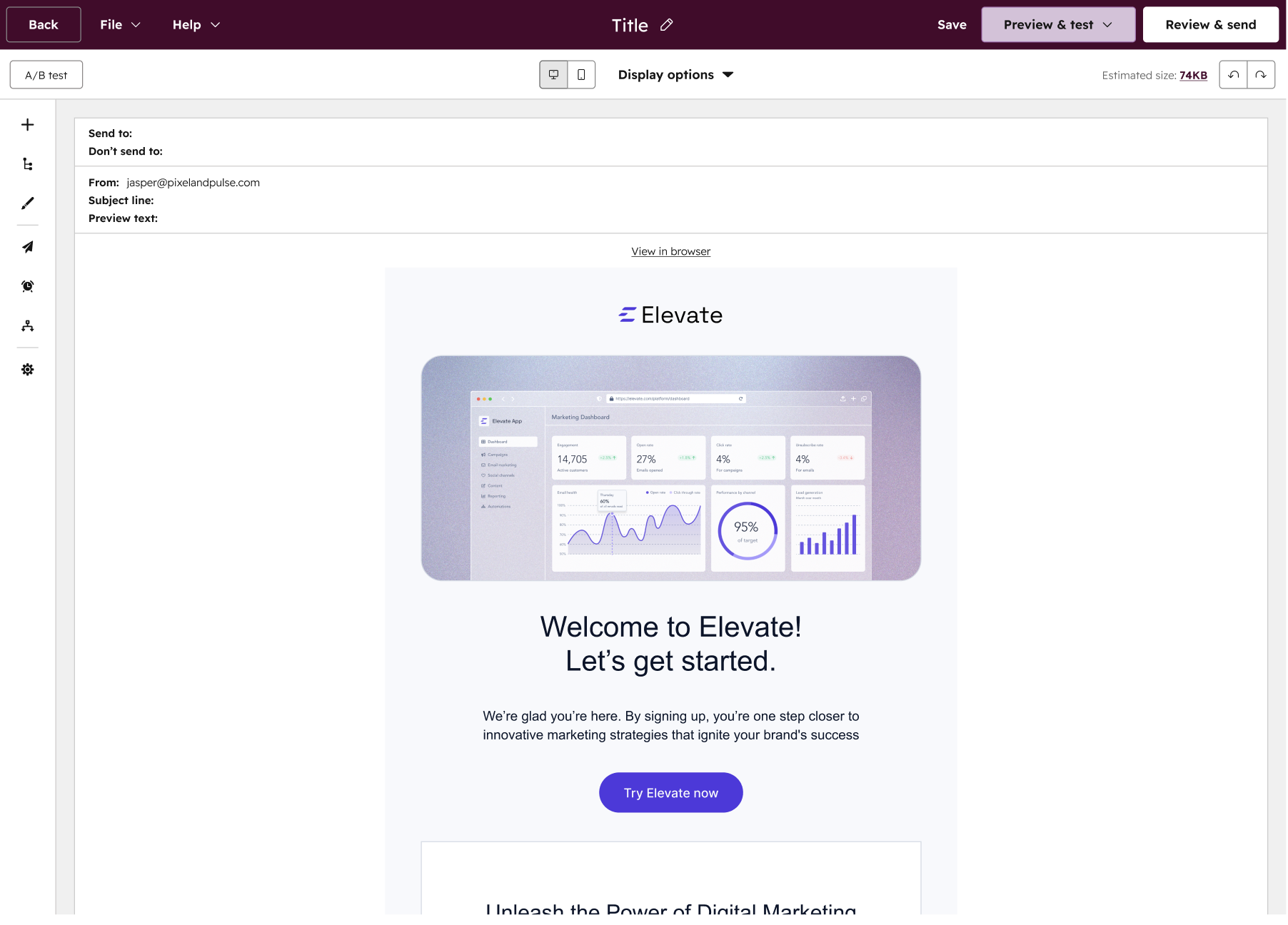
A redesigned email creation experience that transforms HubSpot's email editor into an intuitive, streamlined tool. This updated editor replaces the current interface with a contemporary design, making email creation in HubSpot easier and faster than before.
Why does it matter?
You need an email editor where you can easily create and send effective, delightful messages.
Email was one of HubSpot's first editors, and has had many advancements and features added to the tool over the years. However, this has resulted in the editor becoming "clunky", "unintuitive", and "difficult to onboard" over time.
This redesign of the email editor provides you with a seamless, intuitive and modern editing experience, giving you everything you need to design professional emails and significantly reduce the time to create and send each campaign.
How does it work?
Inside the Marketing Email Editor, you will now have a full canvas and editing area that looks and feels like an email. You will be able to specify your audience, your from name and subject line/preview text all in the same view as your email body.
Click Send to to access the following functionality:
Sending method (to a list, through a workflow, via an API)
Subscription type
Send to
Don't send to
Unengaged contacts
Click Schedule to access the following:
Send now
Schedule for later
Click Inbox to access the following functionality:
From name
From address
Reply to address
Subject line
Preview Text
Click the + Add button in the left side navigation to access the following tools:
Drag and drop modules.
Drag and drop layouts.
Drag and drop saved sections.
Click the Email Contents button on the left side navigation to access the Content tree.
Hover over an element in the Email Contents tab to see this element reflected in the Email Body Preview.
Click the "..." next to a section or module to access editing options for that section or module.
Click the Template Design button in the left side navigation to access the following functionality:
Template Layout format options.
Template level stylings such as background colour, background patterns & images, text styles, button styles, divider styles & spacing.
Click Setup in the left side navigation to access the following functionality:
Campaign
Manage access
Internal email name
Web Version
Plain Text
Office Location
Language
Click Automate in the left side navigation to access the following:
Simple workflows
Note: the Automate tab is not available when the Email will be sent through a workflow.